.png?width=200&height=86&name=cf_logo_black%20(2).png)
As standard our routers supply both the 2.4Ghz and 5Ghz as an integrated 'band'. When you connect devices to it the router will steer that device to the correct band that suits the device.
Sometimes you may need to turn off either your 2.4 GHz or 5 GHz band to connect certain smart devices. If you’re using a fully wired setup, you may also choose to disable both bands entirely!
If you 'split' the bands please ensure you utilize both the 5ghz and the 2.4ghz bands for your devices. You may see restricted performance if you connect all of your devices to only one band!
How to configure the 2.4Ghz and 5Ghz band
- Please ensure your device is connected to your Wi-Fi.
- Open the TP-Link Aginet App and log in if you need to.
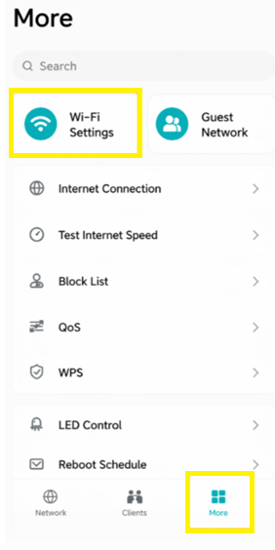
- On the home screen, select More and then Wi-Fi settings.
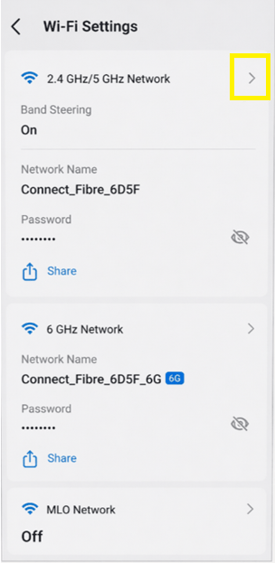
- Tap on the arrow next to your Wi-Fi network name.
-
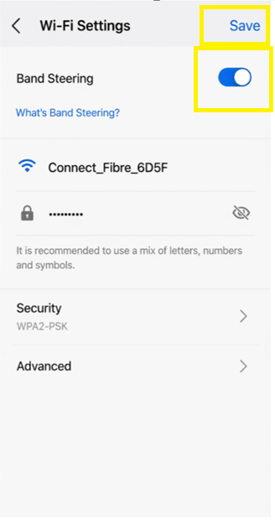
You’ll find the Band Steering toggle switch this off and Save.
-
You’ll see two Wi-Fi names. One for the 5Ghz band and the other for the 2.4Ghz band. We recommend you rename these. For example, renaming Connect_Fibre_1A2B to Connect_Fibre_1A2B_5G, so you can easily tell which is the 5Ghz band.
-
When you change the name of your Wi-Fi bands and click save, the connection may briefly drop while changes are being made.
- You'll now be able to turn off one or both of the bands if you wish to with the toggle next to the Wi-Fi name.
- If you have a device you wish to connect to the specific band you will now be able to do so and it won't be 'steered' to the other in error.
Remerging the 2.4Ghz and 5Ghz bands
Once you've connected your problem device, we recommend that you then remerge the bands as the device should then have no issues connecting.
- Open the Aginet app and log in if you need to.
- Go to More and then Wi-Fi Settings.
- Tap the arrow and toggle Band Steering to on ensuring the toggle is now blue.
- Click Save.
- You'll then see just one Wi-Fi name when you've sucessfully rejoined the 2.4Ghz and 5Ghz bands!