.png?width=200&height=86&name=cf_logo_black%20(2).png)
What causes a poor signal, and how can I improve it?
-
Node Placement: Improperly placed nodes or nodes that are too far apart can result in weaker signals.
-
Ensure all nodes are positioned in open areas where signals can travel freely, rather than inside cabinets or behind furniture.
-
If a node is already in an open area but still has a weak signal, try moving it closer to another node
-
How is the node's signal strength measured?
The dBm is expressed in negative values. RSSI in dBm is the signal strength of your device.
- Ideally aim for -65dBm with the connection to your Mesh node (especially if you're experiencing issues with Wi-Fi devices).
- If -70db and lower you're more likely to have issues with the Mesh node connection and any devices connected to it.
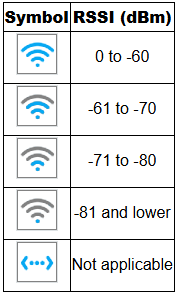
Connect Mesh TP-Link Aginet
-
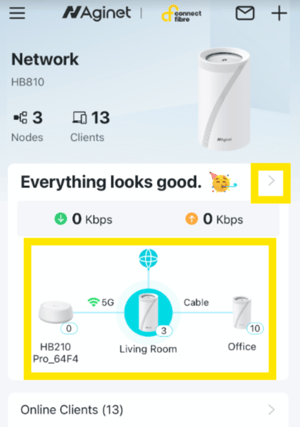
Click on the area that we've highlighted in yellow to see further information about your Connect Mesh.
-
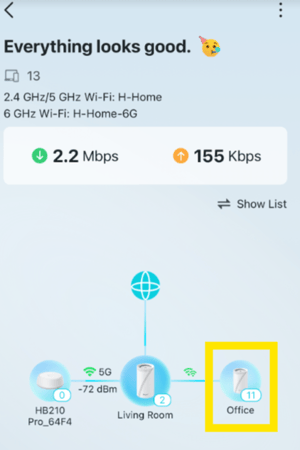
Click on the Node you want to check.
-
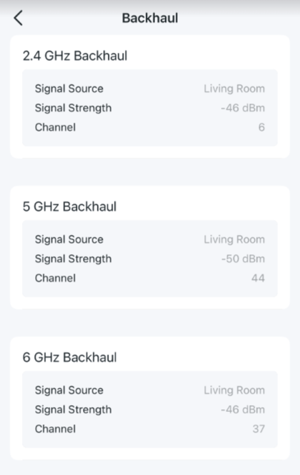
Now you will see a list of RSSI signal strength for each band.
-
If you are seeing your Mesh Node is higher than -65dBm (e.g. -30) you should move it further away from the router or nearest Mesh Node. This will increase the coverage across your property!