![connect-fibre-logo-whie.png]](https://www.connectfibre.co.uk/hs-fs/hubfs/emails/connect-fibre-logo-whie.png?height=40&name=connect-fibre-logo-whie.png)
If you're having trouble connecting a device, temporarily separate the Wi-Fi bands on your Linksys router so it can connect to the correct band. Once connected, merge the bands again. .
After connecting your device, please merge the Wi-Fi bands again to ensure all your devices have the best possible connection.
Forcing a device to connect to the correct band.
- Open your browser and go to http://192.168.1.1
- Log in using your usual username and password or reset using recovery key. Login guide.
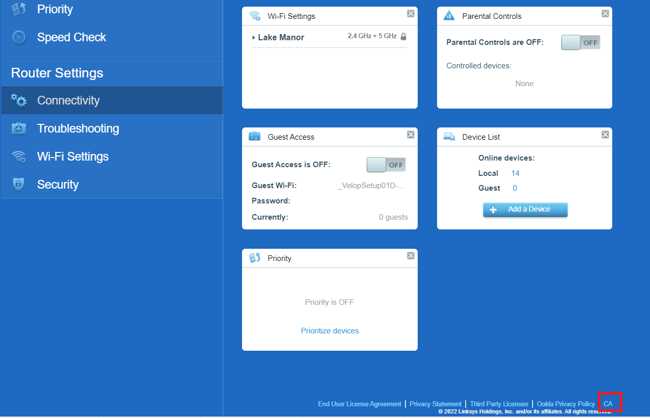
- In the bottom right-hand corner, click CA.
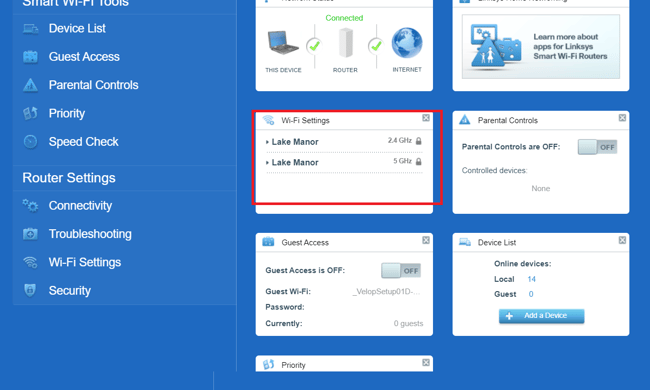
- Click on Wi-Fi Settings, either on the list on the right or image.
- To separate the 2.4 GHz and 5 GHz Wi-Fi bands, rename the band you don't want to use (for example, the 5 GHz band when connecting a Ring Doorbell). You can also change its password if needed.
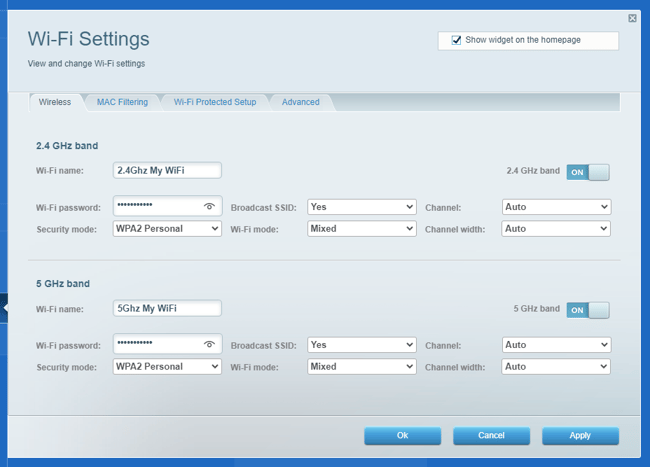
- Click Apply to apply the new Wi-Fi name/password.
- Then connect the device you are struggling to connect to whichever is the preferred band.
- To undo this, please ensure the Wi-Fi name and password match for both 2.4Ghz and 5Ghz. (Preferably, the same name/password the problem device is connected to.)
- The device should now steer to the correct band when connected.