.png?width=200&height=86&name=cf_logo_black%20(2).png)
Active Subscription
Step 1: For any new coupons that need to be applied in Chargebee, please ensure that you have access to Chargebee before proceeding.
Step 2: Locate the customers account in ChargeBee and make sure the customer has an active subscription.
Step 3: Click on "Subscription Link" and select "Edit subscription".
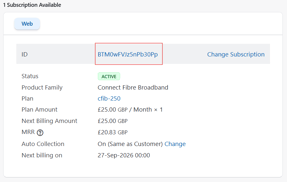
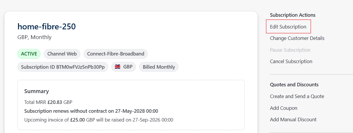
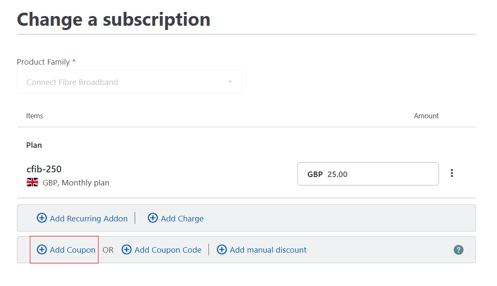
Step 4: Once on the subscription page, click “Add Coupon” and select the appropriate coupon.
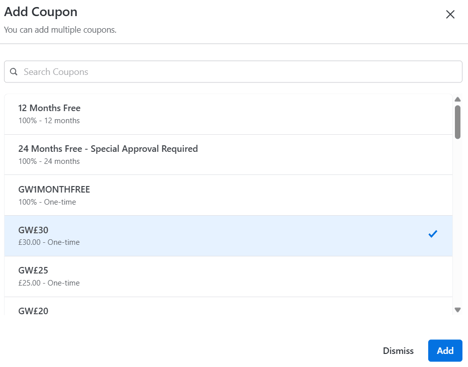
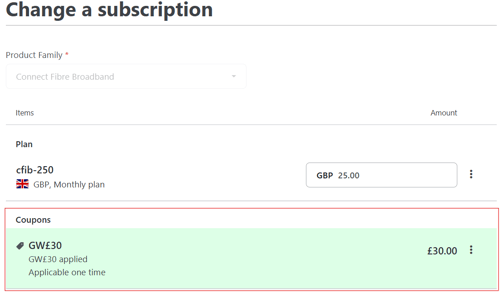
Step 5: The applied coupon will be displayed under the package.
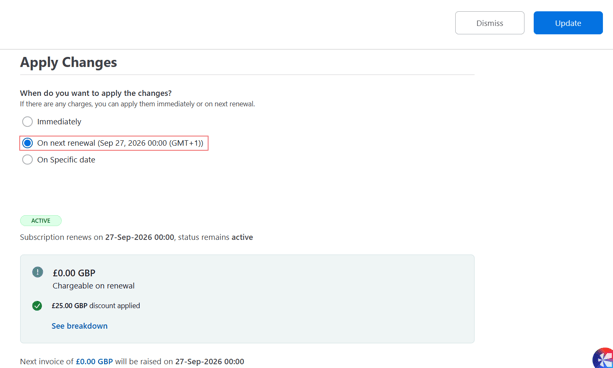
Step 6: After the coupon is added to the subscription, scroll down to the “Apply Changes” section. You MUST change the option to “On next renewal” and then update the changes.
Future Subscription
Step 1: For any new coupons that need to be applied in Chargebee, please ensure that you have access to Chargebee before proceeding.
Step 2: Locate the customers account in ChargeBee and make sure the customer has an active subscription.
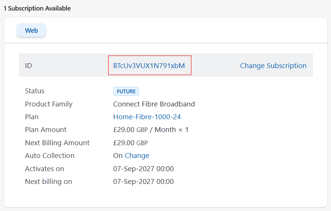
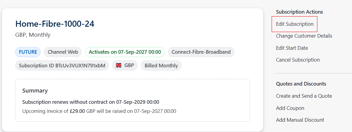
Step 3: Click on "Subscription Link" and select "Edit subscription".
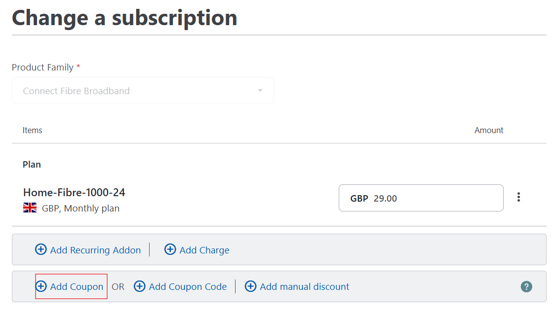
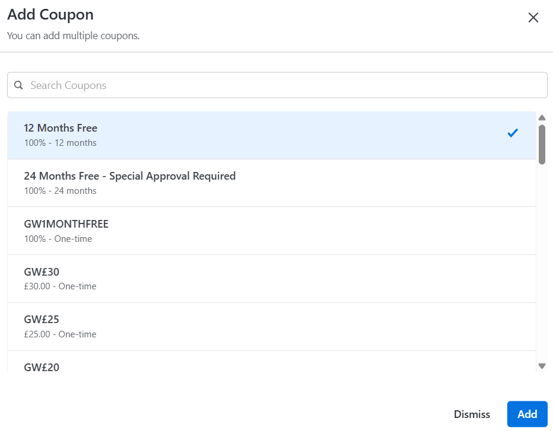
Step 4: Once on the subscription page, click “Add Coupon” and select the appropriate coupon.
Step 5: The applied coupon will be displayed under the package.
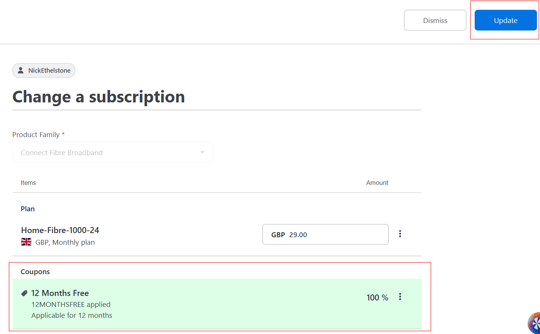
Step 6: After the coupon is added to the subscription, click on "Update" to apply the changes.